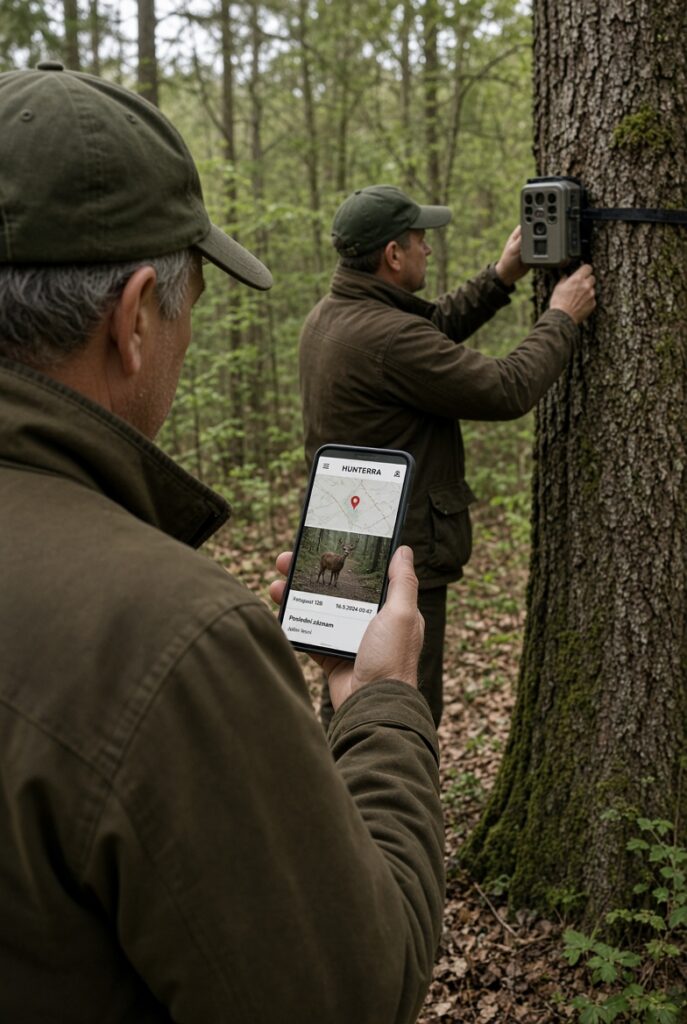
You no longer have to check your camera traps only in the field, install lots of mobile apps, or get lost in a flood of emails. With HUNTERRA, you can connect them directly to a map and the photos from them will go straight to your app – clearly, safely, and under your control.
With one click, you can connect a physical camera trap to a point of interest, set who can see what, and you can immediately share interesting images with all members of the hunting party, or selectively select only some of them. No long thinking about which app to find the photos in, no cluttered email boxes, no guessing who saw what.
Do you want to attach a physical camera trap in the field to a point of interest created on the map? Follow these steps:
Enable integration
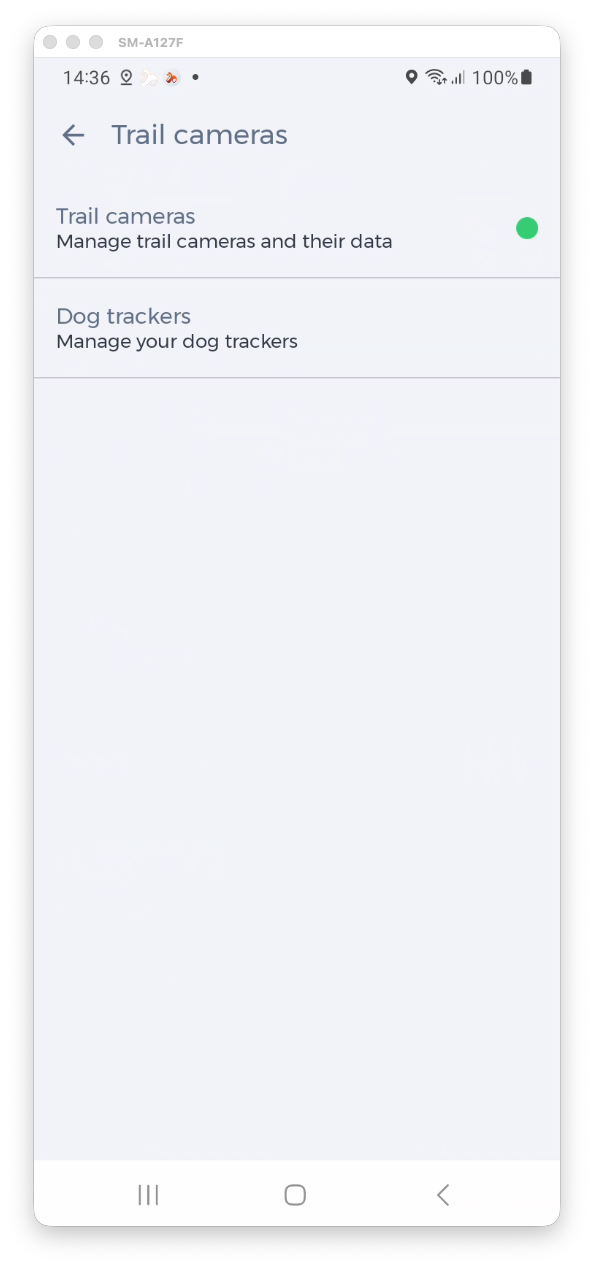
In your user account settings, go to the Integration tab and enable camera integration. This will activate all camera integration features. Additional buttons and options will appear directly next to camera POIs.
Link a camera trap
Create a camera trap point of interest on the hunting ground map. In the created point of interest, click the Link camera trap button. The system will show you the configuration that you set directly on the camera trap. Once you do this, all photos from your camera trap will go to the HUNTERRA application from that moment on.
You can also manually assign photos to the camera trap – as with any point of interest. You can select them from the gallery or take them with your camera. Typically, these are photos of the camera trap itself, so you don’t forget where it is located.
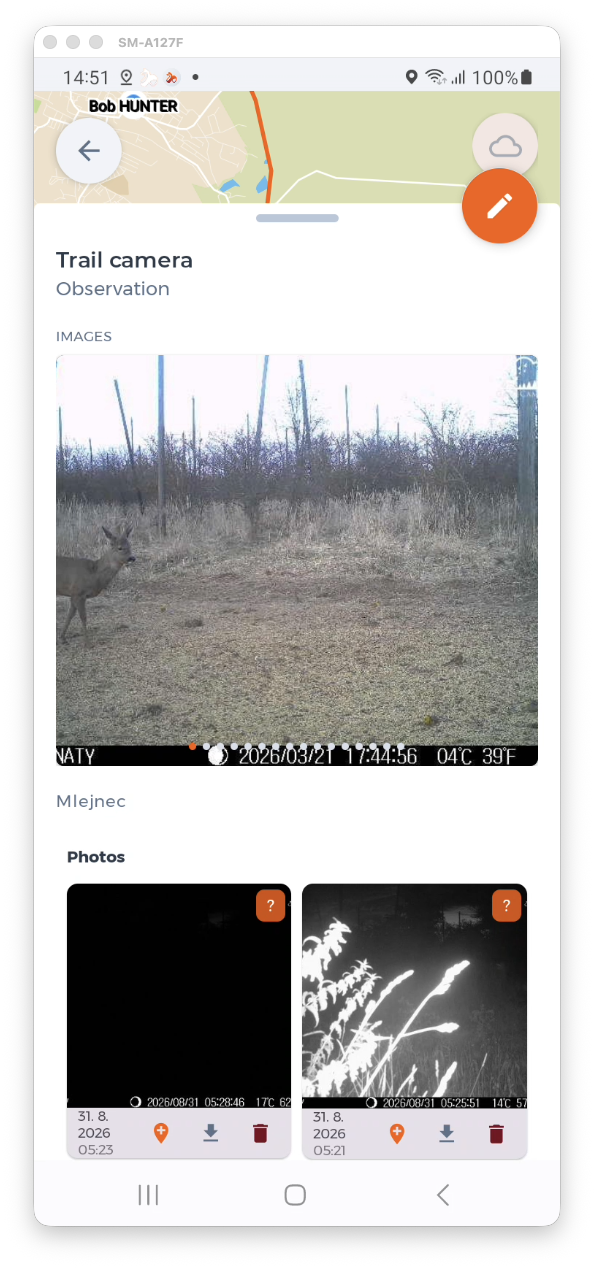
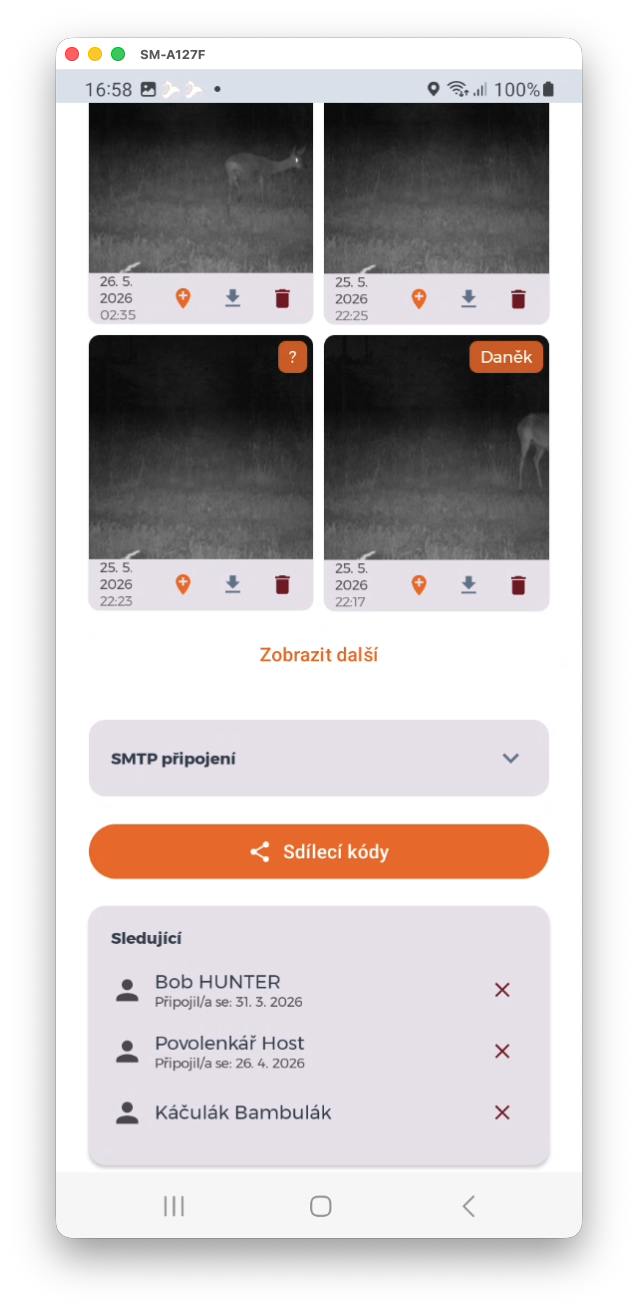
You can also assign photos to the camera trap by selecting them from the payload coming from the camera trap. This will make the selected photos available to all members of your hunting ground. You can also delete photos from the payload or download them to the gallery.
Manage access to photos
If you want to grant access to all photos coming from a camera trap, you can generate share codes and give them to selected users. They use the code to connect to the camera trap and can view all images. They cannot delete or add to photos visible to all members of the hunting party.
You can edit the list of users who have access to images at any time directly in the settings of the given camera trap. There is no limit to the number of users you can grant the right to view your photos. All they need to do is have camera trap integration activated.
Connect to a colleague’s camera trap
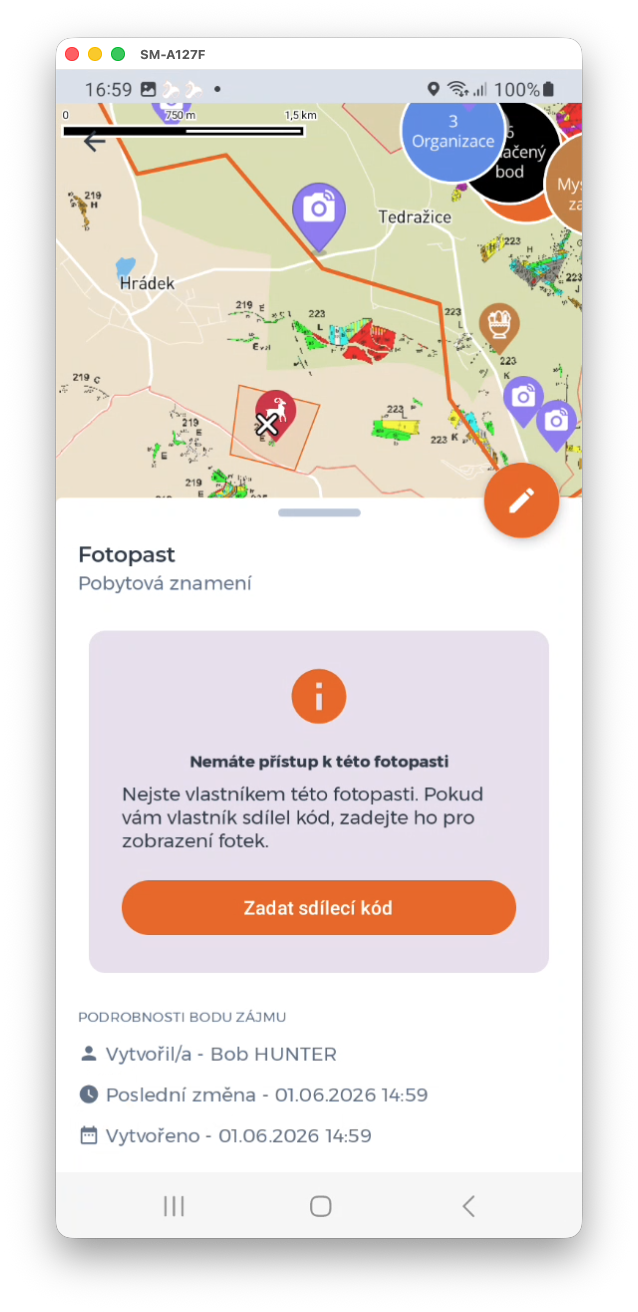
To be able to view photos from a camera trap, you need to get a code from its owner. He can easily generate it in the camera trap settings. You can then enter the code in the details of his camera trap on the map.
You can enter the code manually or scan the QR code. ATTENTION! it is necessary to enter the correct QR code for the selected camera trap. If you add more than one camera trap at once, make sure you enter the correct code generated by the respective camera trap. If you enter a code that belongs to another camera trap, the connection will not occur!
Set your notifications
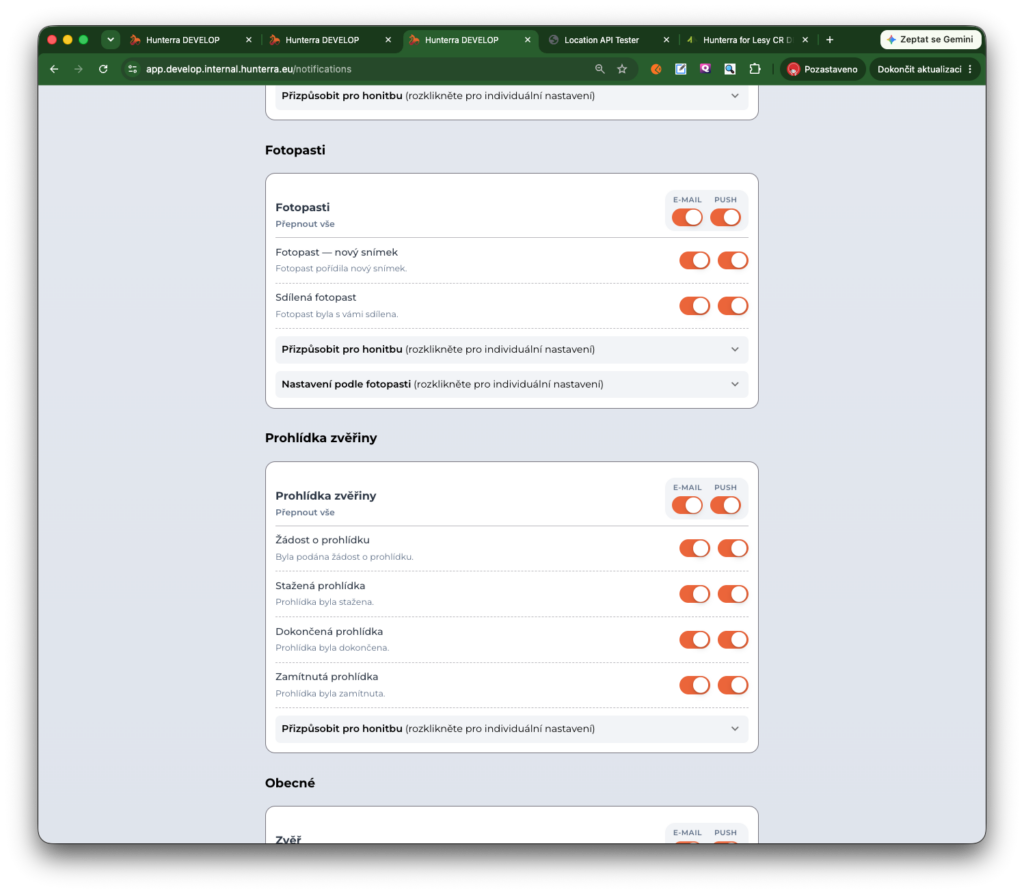
To make sure you don’t miss any photos or get too much spam from HUNTERRA, set which notifications you want to receive. You can set them for all camera traps, camera traps in a selected hunting area, or specific camera traps.